





Ourisman Chrysler Jeep Dodge of Alexandria

Blog / How to connect your iPhone to your RAM

Blog

All How to connect your iPhone to your RAM Around Town Ourisman Chrysler Jeep Dodge Ram Ourisman Chrysler Jeep Dodge of Alexandria Ourisman Chrysler Jeep Dodge of Alexandria Service Community Alexandria Chrysler Dealer Alexandria, VA Alexandria Jeep Dealer Ourisman Jeep Fun Activities Alexandria Car Loan Alexandria Used Cars Ourisman Dodge Alexandria Chrysler Service CDJR Alexandria Service Center Food Ourisman Service Alexandria RAM Dealer Food in Alexandria Dodge Dealer Alexandria RAM 1500 2020 Alexandria Auto Service Alexandria RAM 1500 Alexandria SUV Chrysler Pacifica RAM Dealer Alexandria Car Financing Alexandria, VA Jeep Dealer 2020 Jeep RAM Dealership 2021 Alexandria Chrysler Dealership Alexandria Dodge Dealership Alexandria Jeep Grand Cherokee Cooking Jeep Jeep Gladiator 2020 Jeep Wrangler 2025 Jeep Technology 2026 RAM 1500 Alexandria Chrysler Pacifica Alexandria, VA Chrysler Pacifica Alexandria, VA Jeep Wrangler Antiquing Coffee Jeep Wrangler New RAM 1500 Features RAM Dealer Alexandria 2020 Jeep Gladiator 2021 Jeep Gladiator 2024 Best Family SUV 2025 Jeep SUV 2025 Jeep Wrangler 2025 RAM 1500 2025 RAM Trucks 2026 RAM Trucks Alexandria, VA Jeep Grand Cherokee Best 2026 Jeep SUVs Brake Service & Repair Burgers Desserts New Jeep Wrangler New Ram 1500 Trim Levels RAM RAM Features Restaurant 2018 Jeep Wrangler 2021 Jeep Renegade 2023 Jeep Wrangler 2024 Best Compact SUV 2024 Best Family Vehicle 2024 Best Off-roading SUV 2024 Dodge Hornet 2024 Grand Jeep Cherokee 2024 Jeep 2024 RAM 1500 2024 RAM 1500 Features 2025 Jeep Wrangler 4xe 2025 Jeep Wrangler Hybrid 2025 Jeep Wrangler Trim Levels 2025 RAM 1500 Ramcharger 2026 Jeep Cherokee 2026 Jeep Wrangler 2026 Jeep Wrangler Alexandria, VA 2026 RAM 2500 Alexandria Car Electrical Service Alexandria Dodge Durango Alexandria Dodge Hornet Alexandria Dodge Loan Alexandria, VA Chrysler Voyager Alexandria, VA Jeep Grand Cherokee 4xe Alexandria, VW RAM 1500 Alexandria,VA Car Financing Antique Best Take out and Food delivery Chrysler 300 Grill How to connect your iPhone to your Chrysler Jeep dealer in Alexandria New 2024 RAM 1500 New Dodge Durango New Dodge Hornet New Jeep Compass Ourisman CDJR of Alexandria SUVs Yoga 2018 Durango 2019 All-New RAM 1500 2019 Chrysler 300 2019 Chrysler Pacifica 2019 Dodge Grand Caravan 2019 Jeep Cherokee 2019 Jeep Compass 2019 Jeep Wrangler 2019 RAM 1500 2021 Chrysler 300 2021 Dodge Charger 2021 Dodge Durango 2021 Jeep Cherokee 2021 Jeep Wrangler 2021 RAM 1500 2021 RAM 2500 2023 Chrysler Pacifica 2023 Jeep Compass Alexandria, VA 2023 Jeep Grand Cherokee 2024 Best Family Van 2024 Chrysler Pacifica 2024 Dodge Durango 2024 Dodge Durango Trim Levels 2024 Dodge SUV 2024 Jeep Compass 2024 Jeep Compass Alexandria, VA 2024 Jeep Compass Trim Levels 2024 Jeep Grand Cherokee 2024 RAM 1500 Trim Levels 2025 Chrysler Pacifica 2025 Chrysler Voyager 2025 Dodge Charger Daytona 2025 Dodge Charger Daytona EV 2025 Dodge EV Vehicles 2025 Dodge Sports Cars 2025 Family Van 2025 Jeep Compass 2025 Jeep Grand Cherokee 4xe 2025 Ram 1500 Trim Levels 2026 Chrysler Pacifica 2026 Dodge Durango 2026 Dodge Durango Alexandria, VA 2026 Dodge Durango Trim Levels 2026 Jeep Grand Cherokee 2026 RAM 1500 Towing Power 2026 RAM 2500 Towing Power Alexandria Jeep Compass Alexandria Sports Car Alexandria, VA Dodge Charger Daytona Alexandria, VA Dodge Charger Daytona EV Alexandria, VA Jeep Compass Alexandria, VA Jeep Grand Compass Alexandria, VA Mini Van Anchor Bar Best 2025 SUVs Best Camping Grounds Best Jeeps for road trips Breakfast Chrysler Electrical Problems Cooking Classes Cooking Classes in Alexandria Dodge Durango Alexandria, VA Dodge Electrical Problems Dodge Grand Caravan Fishing Spots Flowers fountains day spa George Washington Masonic National Memorial golf Courses group fitness Gym Historic Sites hot yoga Hotels How to connect Android Auto To Your Chrysler How to connect Android Auto to your Jeep How to connect Android Auto to your RAM How to Connect Android Auto To Your Your Dodge How to connect Apple CarPlay To Your Chrysler How to connect Apple CarPlay to your Jeep How to connect Apple CarPlay to your RAM How to connect your Android to your Chrysler How to connect your Android to your Jeep How to connect your Android to your RAM How to Connect Your Android To Your Your Dodge How to connect your iPhone to your Jeep How to Connect Your iPhone To Your Your Dodge How to Use Apple CarPlay To Your Your Dodge Irish Pub Jeep Electrical Problems King Street Mexican mexican restaurant Museum New Car Military Discount Alexandria, VA New Car Military Discount Fort Belvoir New Car Military Discount Quantico New Chrysler Pacifica New Chrysler Pacifica Features New Chrysler Voyager New Grand Jeep Cherokee New Jeep Grand Cherokee New Ram charger New Ramcharger Pizza Pizzeria Ram Electrical Problems RAM Military Discount RAM Military Discount Alexandria, VA Smell the Flowers sugar house day spa Tacos Tequila The Magnolia Room Vegan Restaurants Winkler Botanical Preserve Workout
Copy_of Copy of Copy of RAM Apple Play_1200_x 628

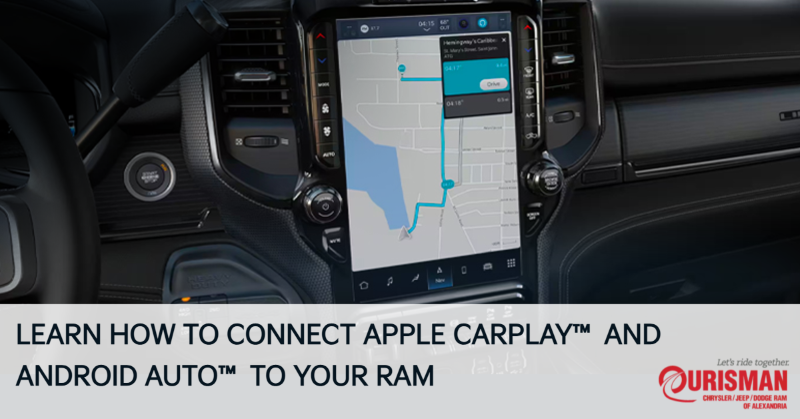
How to Use Apple CarPlay® and Android Auto® in Your RAM

Modern RAM trucks are designed with convenience and technology in mind, offering a range of features that make your driving experience more enjoyable and connected. Among these features, Apple CarPlay® and Android Auto® stand out as essential tools for staying connected while on the road. Here’s a detailed guide on how to use Apple CarPlay® and Android Auto® in your RAM vehicle, making sure you can take full advantage of these cutting-edge technologies. Setting Up Apple CarPlay® in Your RAM Apple CarPlay® allows you to connect your iPhone directly to your RAM’s Uconnect® system. Once connected, you can seamlessly access apps, navigate, make calls, send messages, and much more—all while keeping your hands on the wheel and your eyes on the road. Step-by-Step Guide to Apple CarPlay® Setup: Connect via USB or Wireless: Depending on the model year and configuration of your RAM, Apple CarPlay® can be connected via a USB cable or wirelessly. For USB, simply plug your iPhone into the USB port marked with a smartphone icon. If your RAM supports wireless CarPlay®, make sure your vehicle's Bluetooth and Wi-Fi are enabled. Enable CarPlay® on Your iPhone: On your iPhone, go to Settings > General > CarPlay and select your RAM vehicle from the available options. Allow Permissions: Once connected, a prompt will appear on the Uconnect® screen asking you to allow Apple CarPlay® access. Tap Allow, and you will be able to start using your apps and features on the Uconnect® screen. Access Apps and Navigation: After successful connection, your iPhone’s compatible apps will display on the Uconnect® screen. You can use apps like Maps for navigation, Apple Music for music, or Messages for text communication. Benefits of Apple CarPlay®: Hands-Free Communication: Make and receive calls or send text messages without touching your phone. Navigation: Use Apple Maps or third-party apps like Waze for real-time navigation with traffic updates. Music and Podcasts: Access your favorite playlists, music, and podcasts effortlessly. Setting Up Android Auto® in Your RAM Android Auto® gives Android users the same convenience and functionality as Apple CarPlay®, allowing them to connect their smartphone to the Uconnect® system. With Android Auto®, you can navigate, listen to music, and use compatible apps, all while ensuring a safer driving experience. Step-by-Step Guide to Android Auto® Setup: Connect Your Android Device: Use a USB cable to connect your Android device to the Uconnect® system, or, if supported, set up a wireless connection. Make sure your Android phone is unlocked and ready to pair. Enable Android Auto® on Your Android Device: Download and install the Android Auto® app from the Google Play Store if you don’t have it already. Once installed, open the app and follow the prompts to enable Android Auto® on your device. Allow Permissions: When the Uconnect® screen prompts you to allow Android Auto® to connect, select Allow. The Uconnect® system will now display the Android Auto® interface. Start Using Android Auto®: Once connected, you can use Google Maps for navigation, control your music, and interact with other compatible apps directly from your Uconnect® display. Benefits of Android Auto®: Google Assistant: Use voice commands to control music, navigation, and more without touching your phone. Navigation: Google Maps or Waze provides real-time navigation with live traffic updates. Music & Media: Stream your favorite music and podcasts from apps like Spotify, YouTube Music, and more. Troubleshooting Common Issues While both Apple CarPlay® and Android Auto® are designed to offer smooth and seamless integration, you may encounter occasional connectivity issues. Here’s how to resolve common problems: Unresponsive Screen: If the screen becomes unresponsive, try restarting the vehicle or disconnecting and reconnecting your device. No Audio: Ensure that your smartphone’s volume is up and that the Uconnect® system’s audio is set to the correct source. Wireless Connection Problems: For wireless CarPlay® or Android Auto®, ensure both your vehicle’s system and phone have Bluetooth and Wi-Fi enabled. Also, make sure your vehicle supports wireless connectivity. Using Apple CarPlay® and Android Auto® in your RAM vehicle makes it easier to stay connected, entertained, and informed while driving. By following the simple setup steps, you can enjoy a smooth and intuitive experience that enhances both safety and convenience. Whether you’re an Apple or Android user, your RAM’s Uconnect® system ensures you’re always connected in a way that works best for you. Contact us at Ourisman CDJR in Alexandria, VA for more information or help setting up your system!
Contact Us

Fill out this form below and we'll contact you shortly
*Required Fields