




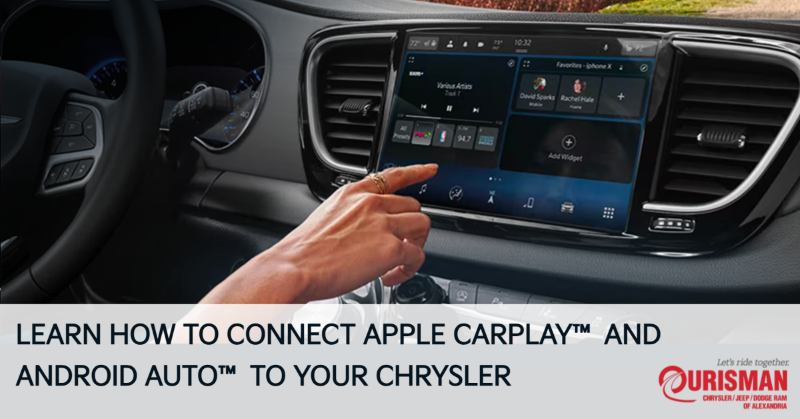
Staying connected on the road has never been easier, thanks to the advanced technology in Chrysler vehicles. Apple CarPlay® and Android Auto® offer seamless integration with your smartphone, allowing you to access your favorite apps, make calls, send messages, and get directions—all while keeping your hands on the wheel and eyes on the road. Here’s a comprehensive guide to setting up and using Apple CarPlay® and Android Auto® in your Chrysler.
Setting Up Apple CarPlay® in Your Chrysler
Apple CarPlay® allows you to effortlessly connect your iPhone to the Uconnect® system in your Chrysler, bringing a world of apps, navigation, and hands-free communication to your fingertips.
How to Connect Apple CarPlay®:
- Plug in Your iPhone:
Use a USB cable to connect your iPhone to the vehicle’s USB port. Look for a USB port labeled with a smartphone icon to ensure you’re connecting to the correct port. - Enable Apple CarPlay® on Your iPhone:
Open the Settings app on your iPhone, then tap General > CarPlay. Select your Chrysler vehicle from the list of available devices. - Grant Permissions:
Once your iPhone is connected, a prompt will appear on the Uconnect® screen asking you to allow Apple CarPlay® access. Tap Allow, and your iPhone’s compatible apps will appear on the Uconnect® screen. - Start Using Apple CarPlay®:
You’ll now have access to a range of apps, including navigation apps like Apple Maps, music apps such as Apple Music, and messaging services to stay in touch without touching your phone.
Key Features of Apple CarPlay®:
- Navigation: Use Apple Maps for turn-by-turn directions or third-party navigation apps like Waze.
- Hands-Free Calling: Make and receive calls with just a few voice commands.
- Messages: Read and respond to text messages via Siri or by using voice-to-text.
Setting Up Android Auto® in Your Chrysler
For Android users, Android Auto® brings the same ease and functionality to the Uconnect® system. Android Auto® allows you to access Google Maps, music, and other Android apps on the Uconnect® screen with a simple connection.
How to Connect Android Auto®:
- Plug in Your Android Device:
Use a USB cable to connect your Android phone to your Chrysler’s USB port. If your Chrysler supports wireless Android Auto®, you can also connect wirelessly by enabling Bluetooth and Wi-Fi on both your phone and Uconnect® system. - Install Android Auto® App:
If you haven’t already, download the Android Auto® app from the Google Play Store. Once installed, open the app on your phone to start the pairing process. - Allow Permissions:
A prompt will appear on the Uconnect® screen asking you to allow Android Auto® to access your phone’s features. Tap Allow, and Android Auto® will begin displaying on your Uconnect® screen. - Enjoy Android Auto®:
Once connected, you can access Google Maps for navigation, play music from your favorite streaming services, and use Google Assistant for hands-free control.
Key Features of Android Auto®:
- Google Maps: Get real-time traffic updates and directions using Google Maps or Waze.
- Google Assistant: Control your music, send messages, and make calls with voice commands.
- Music & Podcasts: Access your favorite music, podcasts, and audiobooks through apps like Spotify and YouTube Music.
Apple CarPlay® and Android Auto® are powerful tools that transform your Chrysler into a connected hub, offering access to essential apps and services with ease. Whether you’re navigating through unfamiliar streets, answering calls, or enjoying your favorite music, these systems ensure a safer, more enjoyable driving experience. Setting up Apple CarPlay® and Android Auto® in your Chrysler is simple, and once connected, you’ll never want to drive without it. Visit Ourisman CDJR of Alexandria in Alexandria, VA for help setting up your technology systems!
Connect with us


Recent Blog Entries
- Inside the 2026 RAM 1500 TRX: Towing, Interior Comfort, and Technology
- How the RAM Military Discount Program Works in Alexandria, VA
- What’s New in the 2026 RAM 2500’s Towing Capacity and Power
- 2026 Jeep Cherokee Hybrid: Fuel Efficiency and Range You’ll Love
- The 2026 Dodge Durango: Power, Performance, and Luxury