





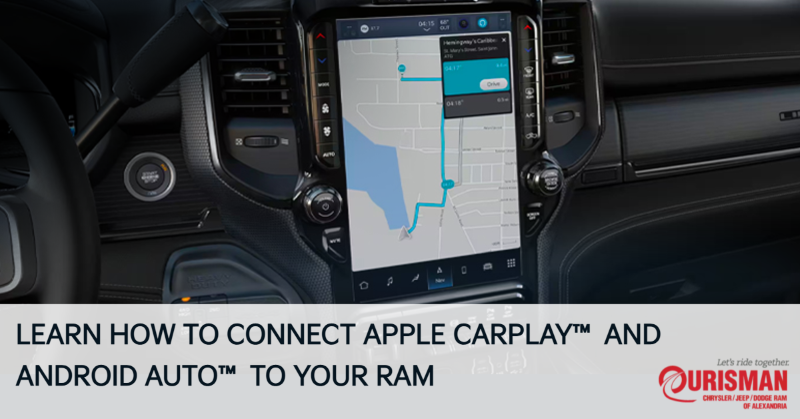
Modern RAM trucks are designed with convenience and technology in mind, offering a range of features that make your driving experience more enjoyable and connected. Among these features, Apple CarPlay® and Android Auto® stand out as essential tools for staying connected while on the road. Here’s a detailed guide on how to use Apple CarPlay® and Android Auto® in your RAM vehicle, making sure you can take full advantage of these cutting-edge technologies.
Setting Up Apple CarPlay® in Your RAM
Apple CarPlay® allows you to connect your iPhone directly to your RAM’s Uconnect® system. Once connected, you can seamlessly access apps, navigate, make calls, send messages, and much more—all while keeping your hands on the wheel and your eyes on the road.
Step-by-Step Guide to Apple CarPlay® Setup:
- Connect via USB or Wireless:
Depending on the model year and configuration of your RAM, Apple CarPlay® can be connected via a USB cable or wirelessly. For USB, simply plug your iPhone into the USB port marked with a smartphone icon. If your RAM supports wireless CarPlay®, make sure your vehicle’s Bluetooth and Wi-Fi are enabled. - Enable CarPlay® on Your iPhone:
On your iPhone, go to Settings > General > CarPlay and select your RAM vehicle from the available options. - Allow Permissions:
Once connected, a prompt will appear on the Uconnect® screen asking you to allow Apple CarPlay® access. Tap Allow, and you will be able to start using your apps and features on the Uconnect® screen. - Access Apps and Navigation:
After successful connection, your iPhone’s compatible apps will display on the Uconnect® screen. You can use apps like Maps for navigation, Apple Music for music, or Messages for text communication.
Benefits of Apple CarPlay®:
- Hands-Free Communication: Make and receive calls or send text messages without touching your phone.
- Navigation: Use Apple Maps or third-party apps like Waze for real-time navigation with traffic updates.
- Music and Podcasts: Access your favorite playlists, music, and podcasts effortlessly.
Setting Up Android Auto® in Your RAM
Android Auto® gives Android users the same convenience and functionality as Apple CarPlay®, allowing them to connect their smartphone to the Uconnect® system. With Android Auto®, you can navigate, listen to music, and use compatible apps, all while ensuring a safer driving experience.
Step-by-Step Guide to Android Auto® Setup:
- Connect Your Android Device:
Use a USB cable to connect your Android device to the Uconnect® system, or, if supported, set up a wireless connection. Make sure your Android phone is unlocked and ready to pair. - Enable Android Auto® on Your Android Device:
Download and install the Android Auto® app from the Google Play Store if you don’t have it already. Once installed, open the app and follow the prompts to enable Android Auto® on your device. - Allow Permissions:
When the Uconnect® screen prompts you to allow Android Auto® to connect, select Allow. The Uconnect® system will now display the Android Auto® interface. - Start Using Android Auto®:
Once connected, you can use Google Maps for navigation, control your music, and interact with other compatible apps directly from your Uconnect® display.
Benefits of Android Auto®:
- Google Assistant: Use voice commands to control music, navigation, and more without touching your phone.
- Navigation: Google Maps or Waze provides real-time navigation with live traffic updates.
- Music & Media: Stream your favorite music and podcasts from apps like Spotify, YouTube Music, and more.
Troubleshooting Common Issues
While both Apple CarPlay® and Android Auto® are designed to offer smooth and seamless integration, you may encounter occasional connectivity issues. Here’s how to resolve common problems:
- Unresponsive Screen: If the screen becomes unresponsive, try restarting the vehicle or disconnecting and reconnecting your device.
- No Audio: Ensure that your smartphone’s volume is up and that the Uconnect® system’s audio is set to the correct source.
- Wireless Connection Problems: For wireless CarPlay® or Android Auto®, ensure both your vehicle’s system and phone have Bluetooth and Wi-Fi enabled. Also, make sure your vehicle supports wireless connectivity.
Using Apple CarPlay® and Android Auto® in your RAM vehicle makes it easier to stay connected, entertained, and informed while driving. By following the simple setup steps, you can enjoy a smooth and intuitive experience that enhances both safety and convenience. Whether you’re an Apple or Android user, your RAM’s Uconnect® system ensures you’re always connected in a way that works best for you. Contact us at Ourisman CDJR in Alexandria, VA for more information or help setting up your system!
Connect with us


Recent Blog Entries
- Inside the 2026 RAM 1500 TRX: Towing, Interior Comfort, and Technology
- How the RAM Military Discount Program Works in Alexandria, VA
- What’s New in the 2026 RAM 2500’s Towing Capacity and Power
- 2026 Jeep Cherokee Hybrid: Fuel Efficiency and Range You’ll Love
- The 2026 Dodge Durango: Power, Performance, and Luxury