





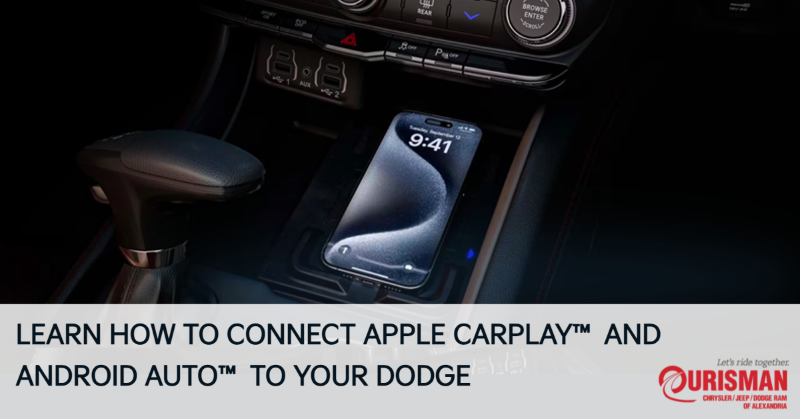
If you drive a Dodge equipped with Uconnect® 5, you’re in luck. The latest Uconnect system comes with seamless integration of Apple CarPlay® and Android Auto®, two features that allow you to connect your smartphone to your vehicle effortlessly. Whether you’re using an iPhone or an Android device, these technologies enhance your driving experience by providing easy access to navigation, music, messages, and apps.
At Ourisman CDJR of Alexandria in Alexandria, VA, we are committed to ensuring your driving experience is as smooth and connected as possible. Whether you’re purchasing a new Dodge or looking for ways to enhance your current vehicle’s capabilities, we’re here to assist you every step of the way.
Getting Started with Apple CarPlay® and Android Auto® in Your Dodge
1. Ensure Compatibility
Before diving into the setup process, you must ensure that your Dodge is compatible with Apple CarPlay® or Android Auto®. Dodge vehicles equipped with Uconnect® 5 offer these features as standard or optional, depending on the model. Check your vehicle’s user manual or Uconnect® settings to verify the availability of these features.
2. Prepare Your Smartphone
For Apple CarPlay®:
- Ensure your iPhone is running iOS 7.1 or higher.
- Use a Lightning to USB cable for the wired connection or enable wireless CarPlay (if available).
For Android Auto®:
- Your Android phone should be running Android 5.0 (Lollipop) or later.
- Use a USB cable for the wired connection or enable wireless Android Auto (if supported).
3. Connect Your Smartphone to Your Dodge
- Wired Connection: Simply plug your smartphone into the USB port of your Dodge. A prompt will appear on the Uconnect® screen asking you to enable Apple CarPlay® or Android Auto®. Confirm the connection to begin using the system.
- Wireless Connection: If your vehicle supports wireless connection, ensure both Bluetooth and Wi-Fi are enabled on your smartphone. Select your Dodge’s Uconnect® system on your phone, and once paired, Apple CarPlay® or Android Auto® will automatically activate.
Navigating Apple CarPlay® and Android Auto® Features
Once your smartphone is connected, the Uconnect® screen will display the interface for either Apple CarPlay® or Android Auto®. Here’s how to navigate the features:
1. Accessing Apps
Both Apple CarPlay® and Android Auto® offer a variety of apps that can be accessed directly from your Dodge’s Uconnect® screen. These apps include popular options such as:
- Navigation: Use Apple Maps or Google Maps for turn-by-turn directions.
- Music and Podcasts: Access your favorite streaming services like Spotify, Apple Music, Google Play Music, and more.
- Messaging and Calls: Read and send messages via voice control or on-screen prompts. You can also make and receive calls hands-free.
2. Voice Commands
Apple CarPlay® and Android Auto® allow you to control features using voice commands. Simply press the voice command button on your steering wheel and speak your request. Whether it’s sending a message, playing a song, or setting a destination, voice commands offer a safe and convenient way to interact with your smartphone while driving.
3. Customizing Your Experience
Both Apple CarPlay® and Android Auto® allow you to customize the layout of your apps on the screen. You can choose which apps appear on your Uconnect® screen, ensuring that your most-used apps are always accessible.
Troubleshooting Tips
In case you encounter any issues with Apple CarPlay® or Android Auto®, here are a few troubleshooting tips:
- Check the Cable: If you’re using a wired connection, ensure that your USB cable is in good condition. A faulty cable could cause connection problems.
- Restart Your Phone: Sometimes, a simple restart of your phone can resolve connection issues.
- Update Software: Ensure both your smartphone and Uconnect® system are running the latest software versions. You can check for updates in the Uconnect® settings menu.
Apple CarPlay® and Android Auto® offer a more connected and convenient driving experience in your Dodge. By following these simple steps, you can easily set up and use these features, ensuring that you stay connected while keeping your focus on the road. Whether you’re navigating, streaming music, or sending messages, these technologies enhance your driving experience and keep you in touch with your digital life.
If you’re in Alexandria, VA, visit Ourisman CDJR of Alexandria today to learn more about how Apple CarPlay® and Android Auto® can improve your driving experience. Our team is here to help you get the most out of your Dodge vehicle, and we’re always ready to assist with setup and troubleshooting.
Connect with us


Recent Blog Entries
- The 2026 Dodge Durango: Power, Performance, and Luxury
- Discover the 2026 Jeep Wrangler: The Ultimate Off-Road Icon at Ourisman CDJR of Alexandria
- 2026 Jeep Cherokee Trim Guide: Finding the Right Model
- Jeep Grand Cherokee – The Best Jeep SUV for Holiday Road Trips in 2026
- The 2026 Chrysler Pacifica: A Family-Friendly SUV Revolution